Topic
You can set up Unassigned appointments on your scheduler to serve as placeholders while you're planning and entering jobs for your customers, especially when you're not certain which staff member will handle the appointment yet.
Instructions
1. Navigate to the main Scheduler Page.
2. Select New Appointment or click on the scheduler where you would like to create an appointments.
3. Fill out the details for the appointment, leaving the staff member field blank.
4. Select Save.
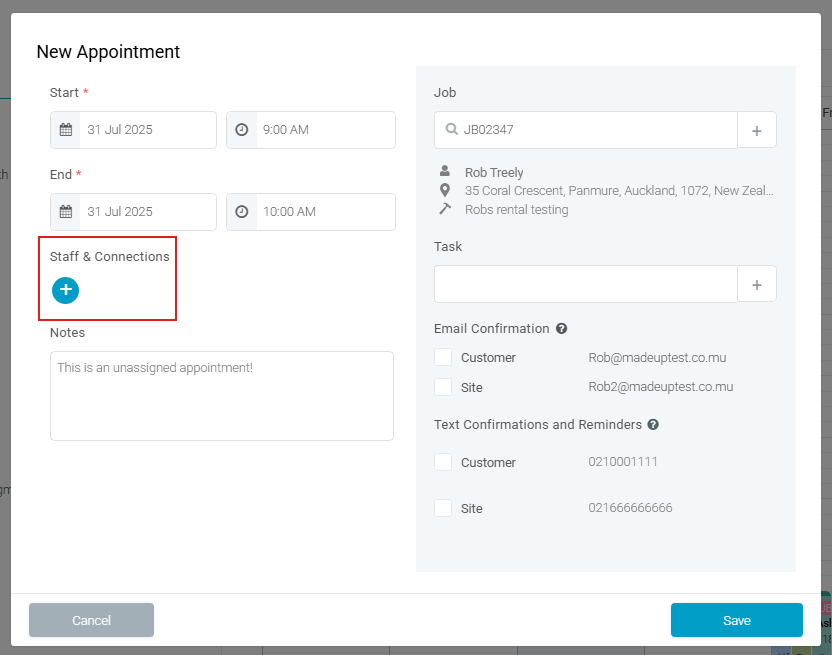
Once you later have decided on who will be assigned to the appointment:
1. Navigate back to the scheduler.
2. Select the appointment.
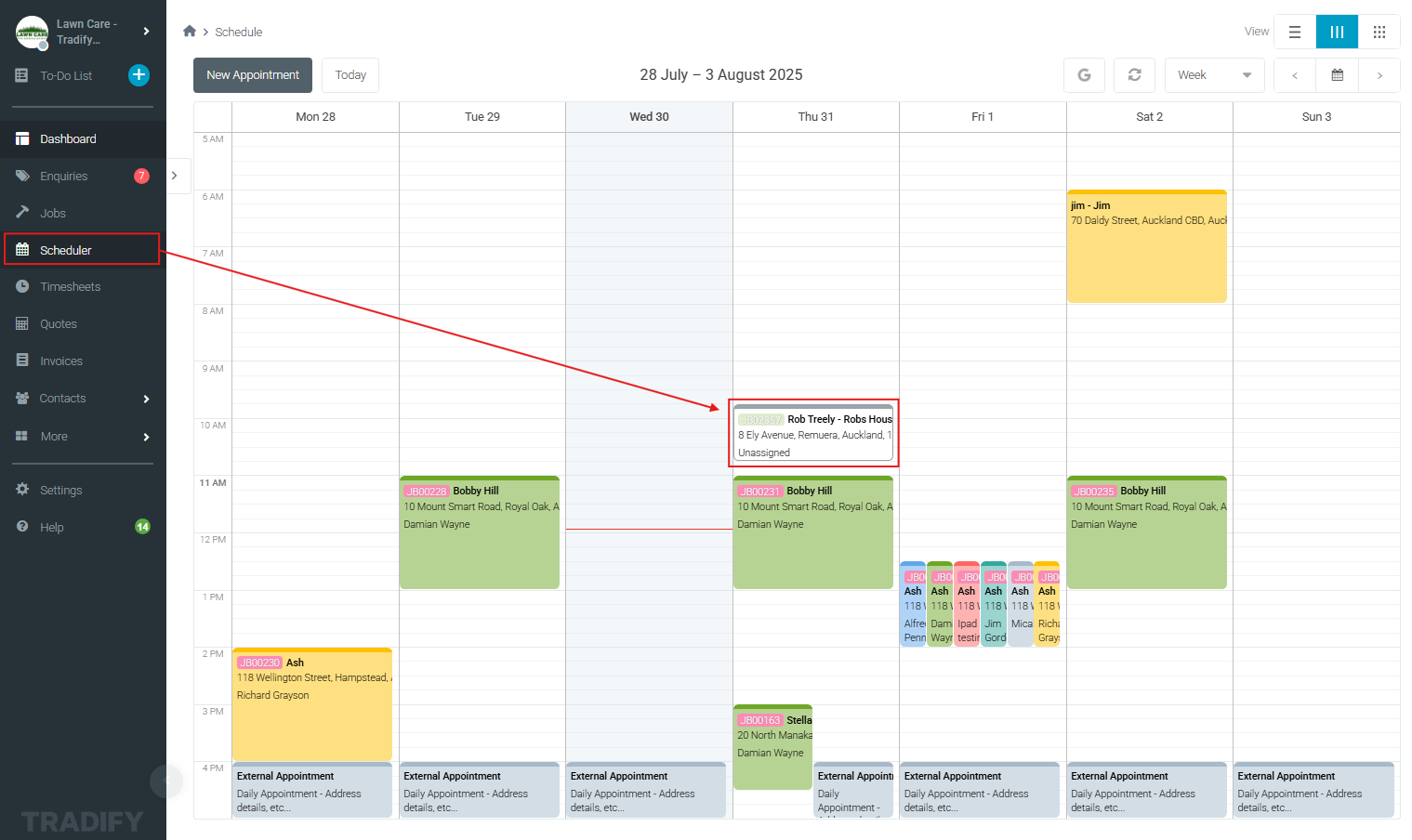
3. Add staff member(s) to it.
4. Select Save.
2. Select New Appointment or click on the scheduler where you would like to create an appointments.
3. Fill out the details for the appointment, leaving the staff member field blank.
4. Select Save.
Once you later have decided on who will be assigned to the appointment:
1. Navigate back to the scheduler.
2. Select the appointment.
3. Add staff member(s) to it.
4. Select Save.
1. Navigate to the Scheduler main page.
2. Select the blue + Icon.
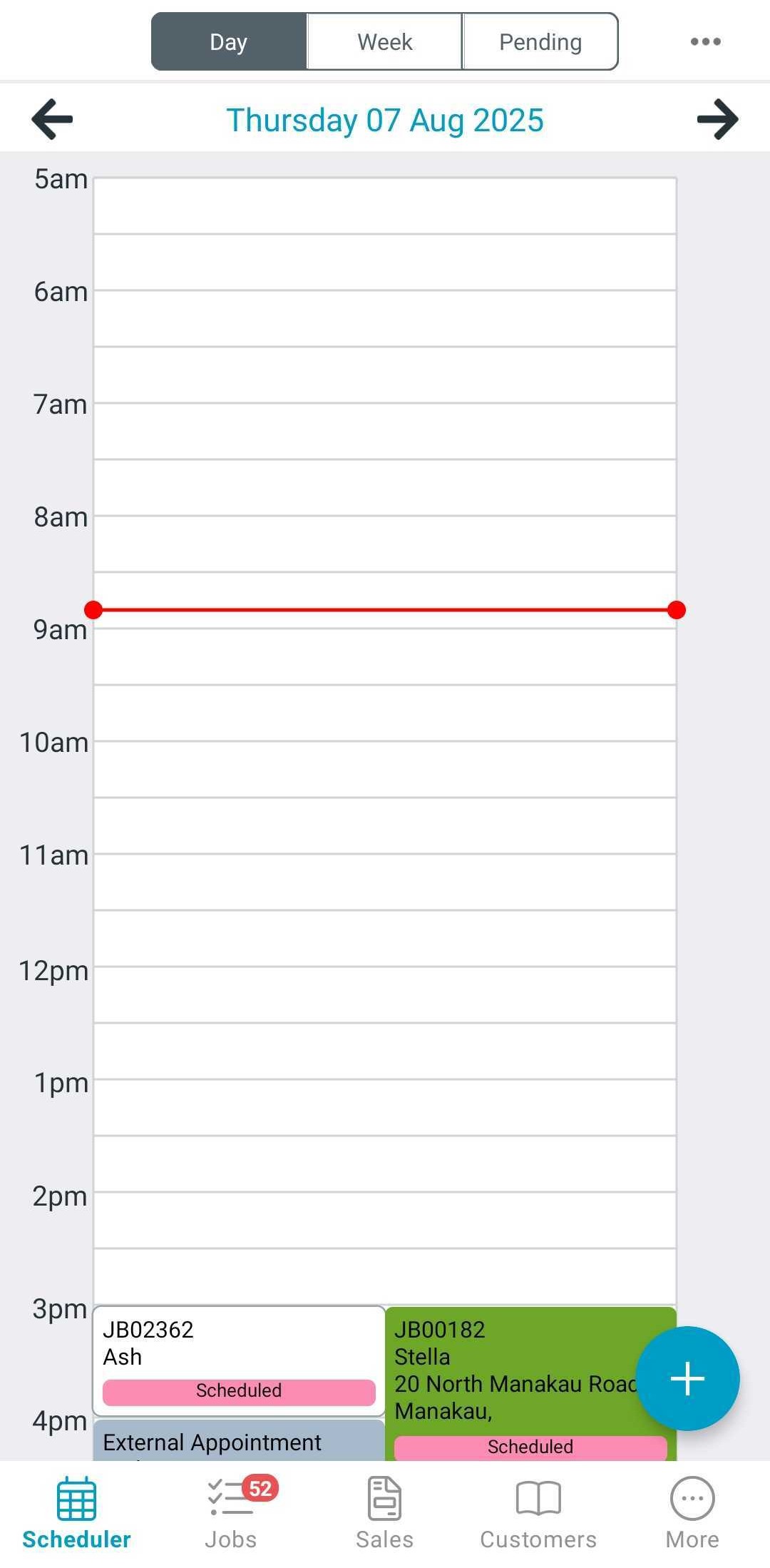
3. Add the appointment details, link the related job, and leave the staff member field blank.
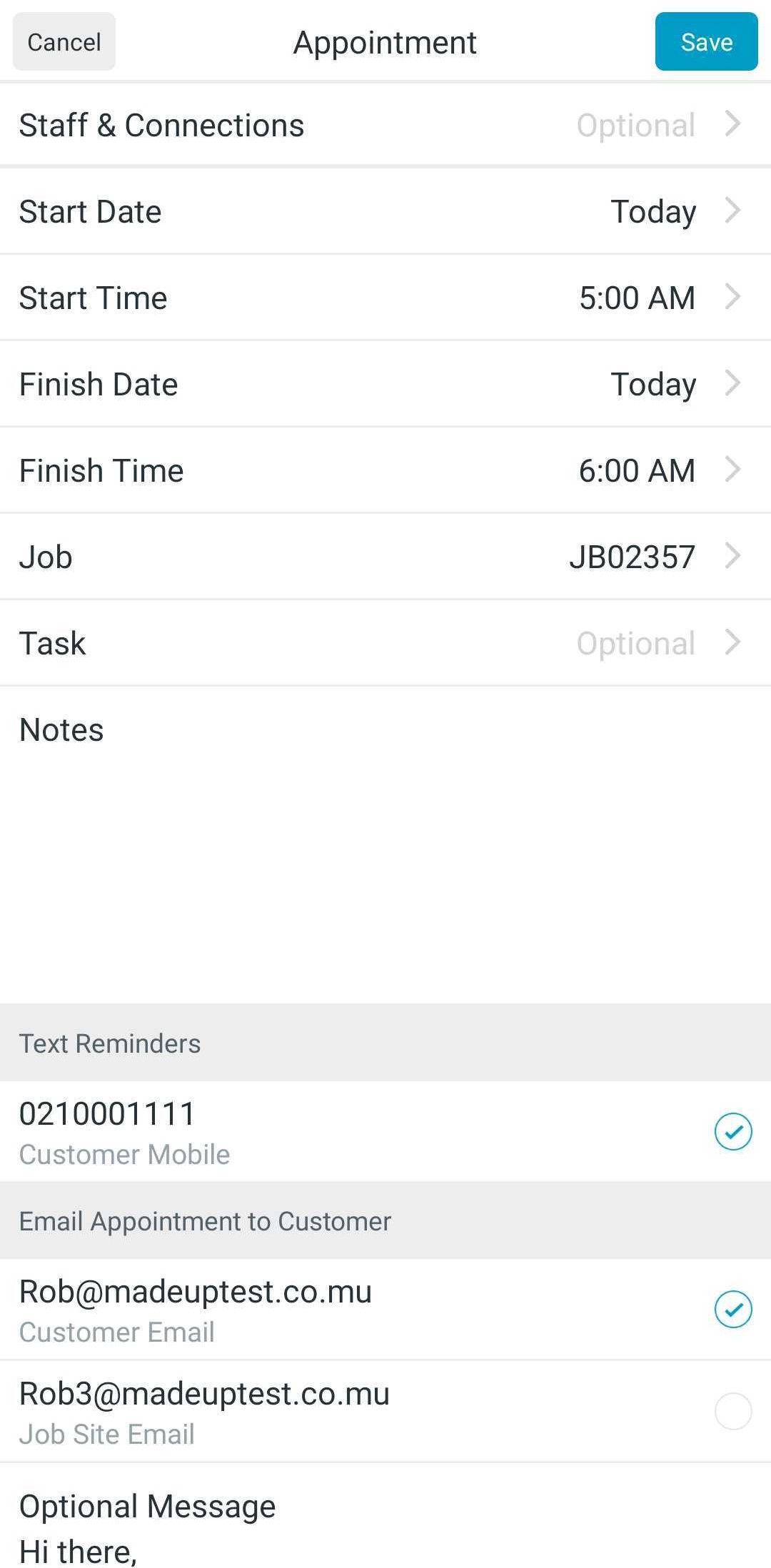
4. Select Save.
Once you later have decided on who will be assigned to the appointment:
1. Navigate back to the Scheduler Page.
2. Select on the appointment.
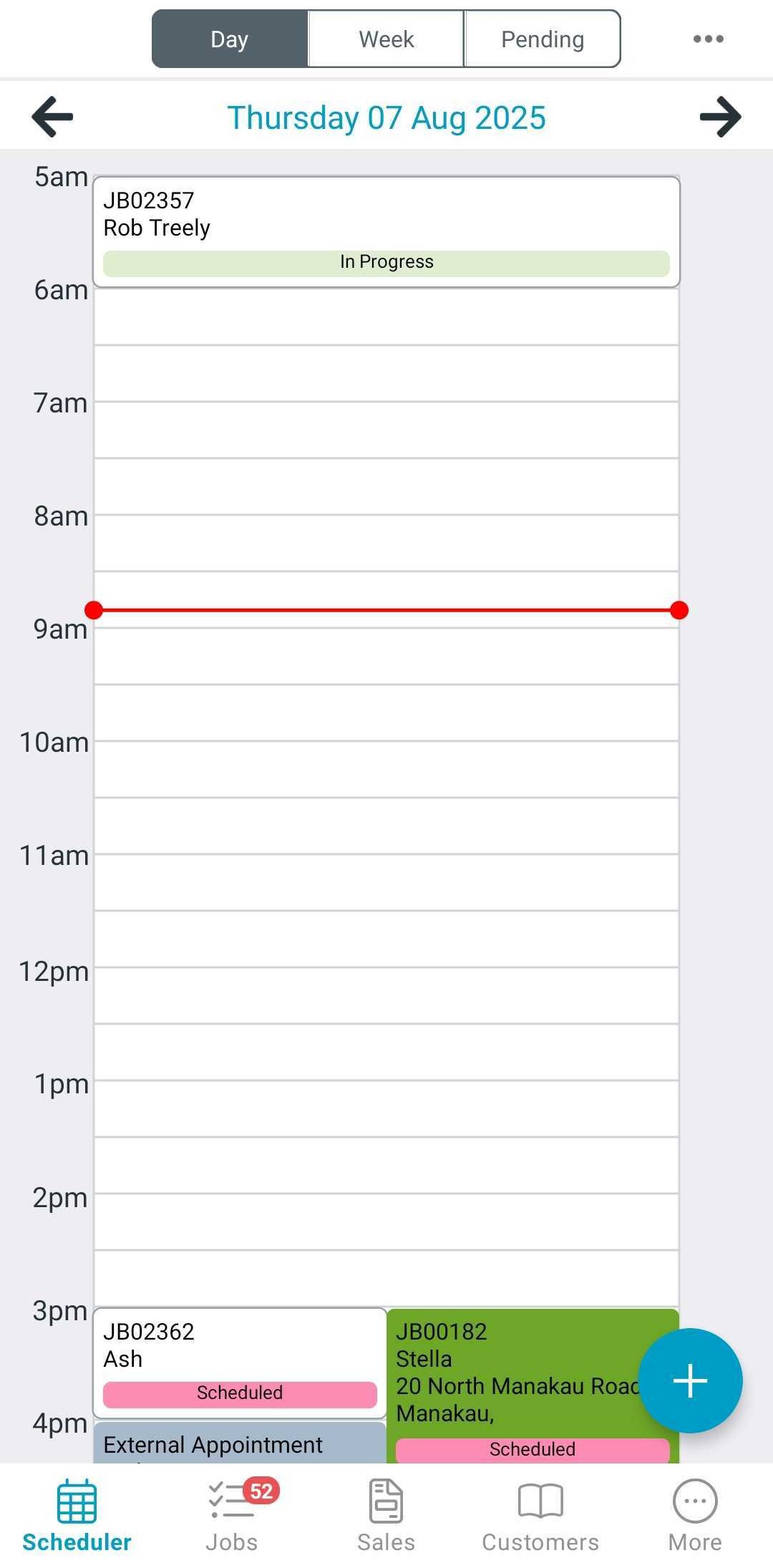
3. Select Staff and Connections.
4. Tick on the staff member(s) you want to assign.
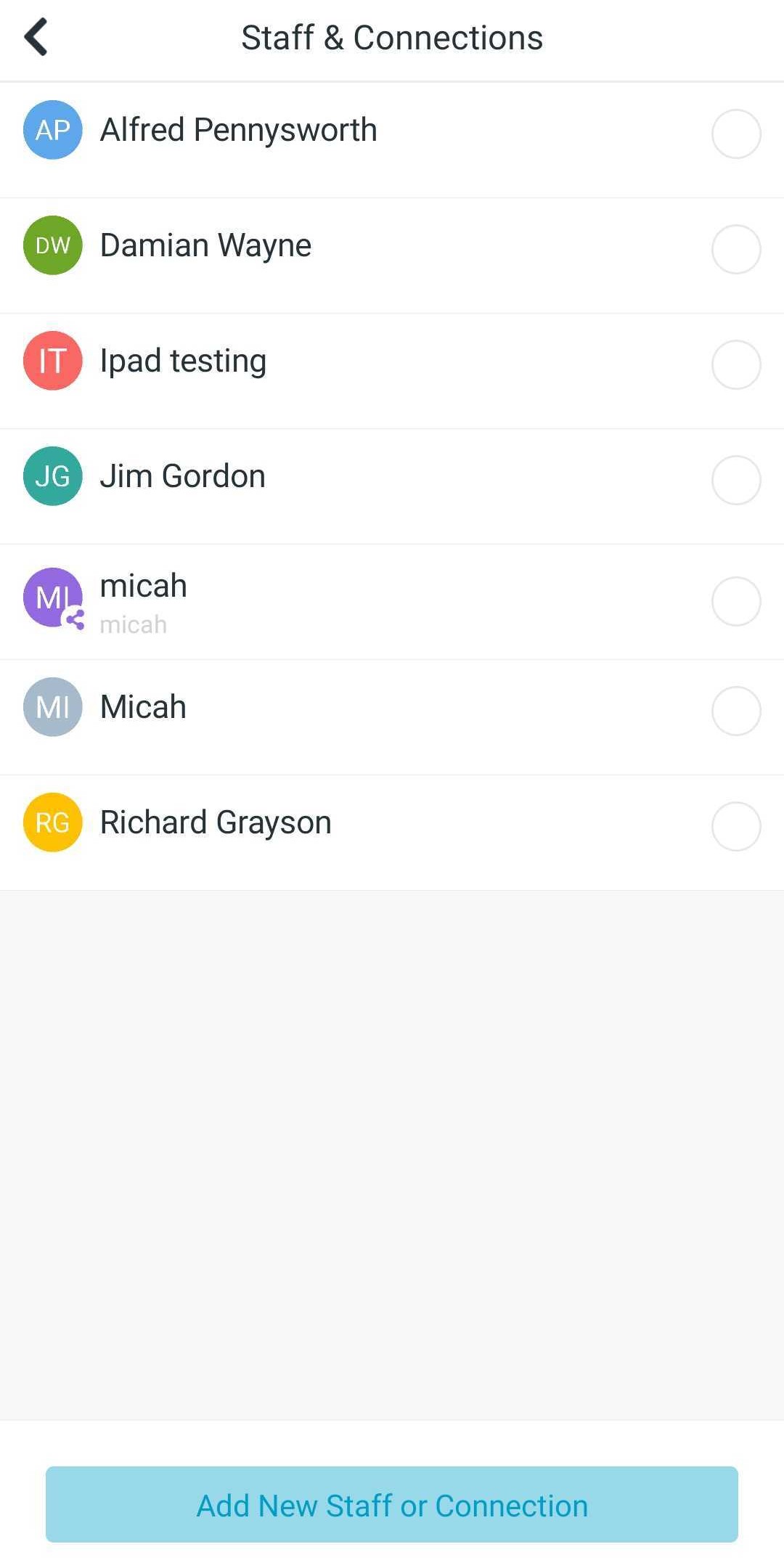
5. Select the < (back arrow), then Select Save.
2. Select the blue + Icon.
3. Add the appointment details, link the related job, and leave the staff member field blank.
4. Select Save.
Once you later have decided on who will be assigned to the appointment:
1. Navigate back to the Scheduler Page.
2. Select on the appointment.
3. Select Staff and Connections.
4. Tick on the staff member(s) you want to assign.
5. Select the < (back arrow), then Select Save.
Note: You can also remove staff member from an existing appointment to move this appointment to a unassigned appointment. Removing this staff member from the appointment will remove them from the associate job if they do not have any other assigned appointments for the job.
Filtering the Scheduler by Unassigned appointments
Similar to how you can filter the scheduler by staff member, you can also filter it by Unassigned appointments, see below for how to do this:
Additional Informations
For more info on creating appointments see here: Scheduling a Job from a Job Card
Comments
Article is closed for comments.